Configurator Deployments
Configurator Deployments. Configurator Deployments adds published versions to a configurator. The configurator team designs and tests the next version while order entry carries on against the publish…
Configurator Deployments
Configurator Deployments adds published versions to a configurator. The configurator team designs and tests the next version while order entry carries on against the published one, and every order keeps the version it was built with.
This article covers what the system provides, how to set it up, and how the change process works once it is on.
What Configurator Deployments provides
Design the next version while the current one keeps serving orders. The configurator team can change rules, the bill of materials, categories, styles, layouts, and images as freely as the work requires. Order entry continues on the published version until a new one is published, so work in progress is never visible to whoever is quoting.
Work during business hours, in whole changes. Because nothing is visible until publication, a change can be as large as the work genuinely needs. Restructure a branch, rewrite a set of rules, take a few days to modify or test it, and publish once when it is right.
Test the next version before anyone else sees it. A configurator can be exercised and validated as it will behave once published, while order entry is untouched.
Every order keeps the version it was built with. A configured order reflects the options and structure it was created against, so it stays consistent as the configurator moves forward.
Bring an order onto a newer version deliberately. When newer options exist, whoever is working the order can see what would change and decide. An update that has been applied can be undone.
A record of every version. Each published version is recorded with a note describing what changed, and an earlier one can be restored.
What it means for each team
Role | What changes |
Configurator team | Design and publish. The work stays private until it is published, and the timing is the team's to choose. |
Sales and customer service | An order opens with the options it was built with. Where newer options exist, the order offers the choice to move forward. |
Marketing and presentation | Images and layouts become part of the next published version, so they go live together with the rest of the change. |
What a version saves, and what stays live
This is the most useful thing to understand up front. A version saves the shape of the configurator. Product data stays live.
Saved in the version — reaches orders on publication
- The bill of materials — which items are included, and where they sit in the tree
- How each component behaves — required, optional, standard, quantifiable, configurable; pick type; minimum and maximum quantity; minimum and maximum number of selections; sequence
- Config Category, Config Style, and Config Layout assignments
- Rules — facts, actions, and rule items, including a price adjustment set by a rule
- Custom field definitions used by the configurator, including their labels
- Which images are attached to each item
Live at all times — no publishing needed
- Item price
- Item name, display name, part number, description, weight, and dimensions
- Whether an item is active or available
- The file behind an image that already exists — replacing the file shows through
Why the line falls there
The split is structure versus product data.
Structure is what a configured order means. Holding it steady is what allows an order to stay meaningful while the configurator moves on, so structure travels with the version.
Product data is reference information that should always be current. A price change, a corrected part number, or a better description should apply everywhere without republishing every configurator, so it stays live.
Prices and existing orders. Item prices are live, so every new order picks up a price change immediately. Order lines that already exist keep the price they were written with, exactly as they always have — that is order behavior rather than anything to do with versions. Use Refresh Pricing on the order to bring existing lines to current pricing.
Images and layouts. Because these travel with the version, a new image or a layout change appears in order entry on publication, alongside whatever else that version contains. Replacing the file behind an image that already exists is the exception and shows through right away.
Where the work happens
Three places, all under Items in the left menu, each for a different group.
Location | Intended for | Purpose |
Configurator | Configurator team | The configurator record itself, where a configurator is defined |
Config Studio | Marketing / presentation | Presentation and imagery for a configurator |
Config Manager | Configurator management | Publish versions, review history, validate, roll back, import and export |
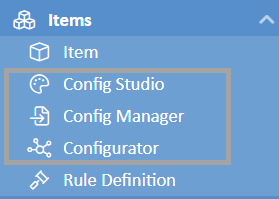
Permissions. Config Manager requires the Configurator Admin role. Config Studio requires the Sales Admin role. Assign Configurator Admin to the people who should be able to publish, since publishing is what moves order entry forward for everyone.
Setup
Work through these in order. Nothing changes for users until step 4.
1. Create a configurator monitoring team
Create a Team whose members should hear when the configurator engine reports something — most usefully a rule loop, where rules trigger each other in a circle. Include the people who maintain the configurators, since the notifications are only actionable by someone who can read a rule.
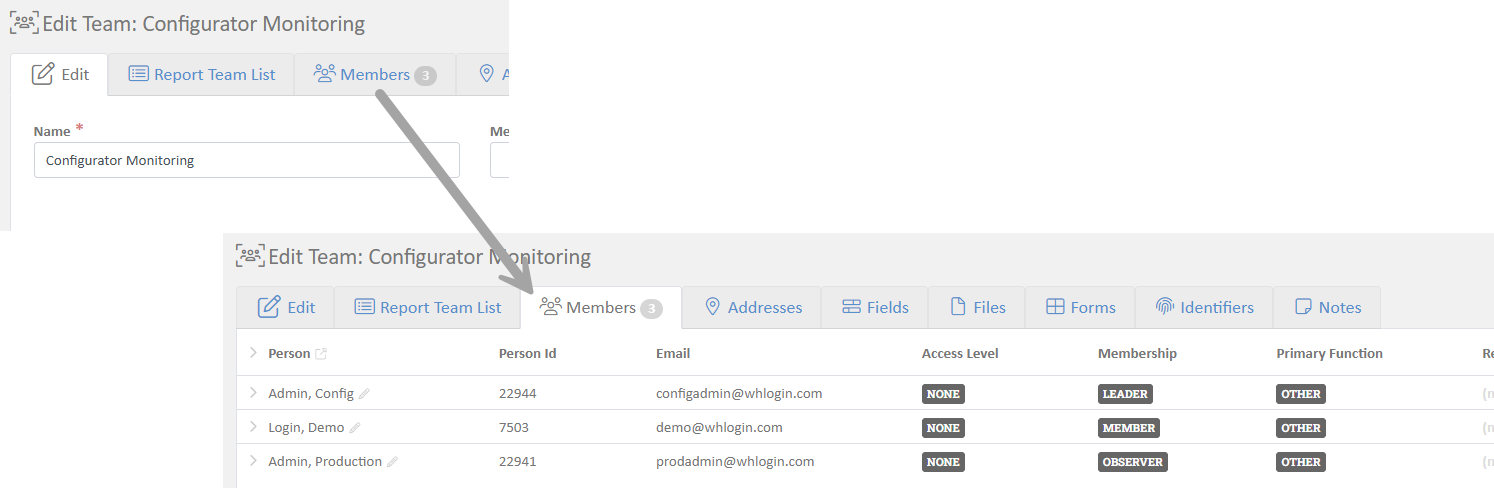
2. Point the monitoring setting at that team
In Settings, set Configurator Monitoring Team to the team just created.
With this set, an engine notice reaches a person the same day. Without it, notices are written to the log only.
3. Decide who is offered updates
Two settings control who is offered the chance to bring an order onto a newer version. They do not affect who can order — only who sees the update option.
Setting | Applies to | Default |
Deployment Update Audience (Quote) | Quotes | Everyone |
Deployment Update Audience (Sale) | Sales | Sales Reps & Employees |
Each can be set to None, Sales Reps & Employees, Sales Reps, Employees, & Outside Reps, or Sales Reps, Employees, Outside Reps, & Contacts.
The defaults suit most companies. A quote is still being negotiated, so moving it to current options is usually welcome. A sale is committed, so that decision sits with internal staff by default.
Invoices are never offered updates, in any configuration.
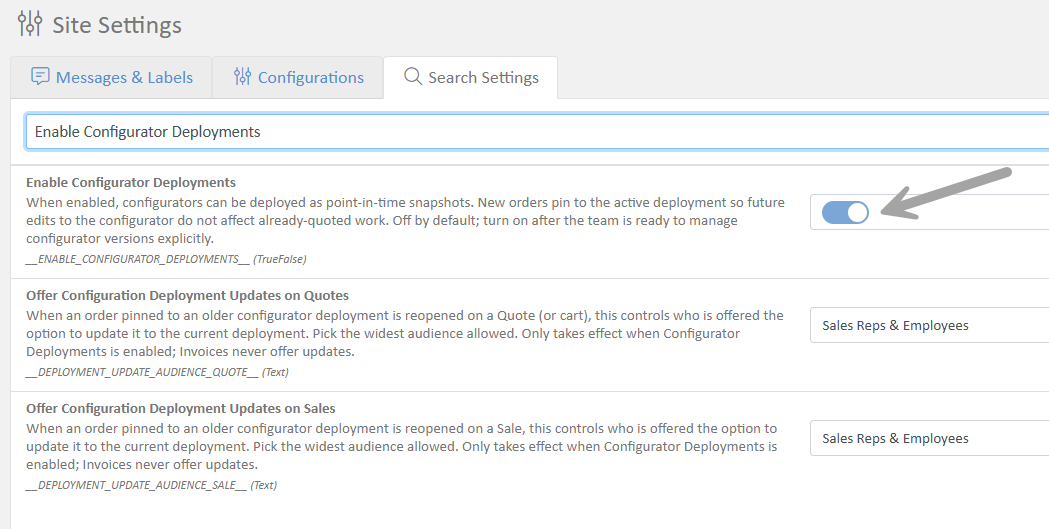
4. Enable deployments
In Settings, turn on Enable Configurator Deployments.
This is the switch that brings versioning into effect. Until it is on, everything above sits inert.
Existing orders are unaffected until a first version is published for the configurator they use. Orders that predate versioning resolve to the version that best matches when the order was placed.
5. Publish the first version
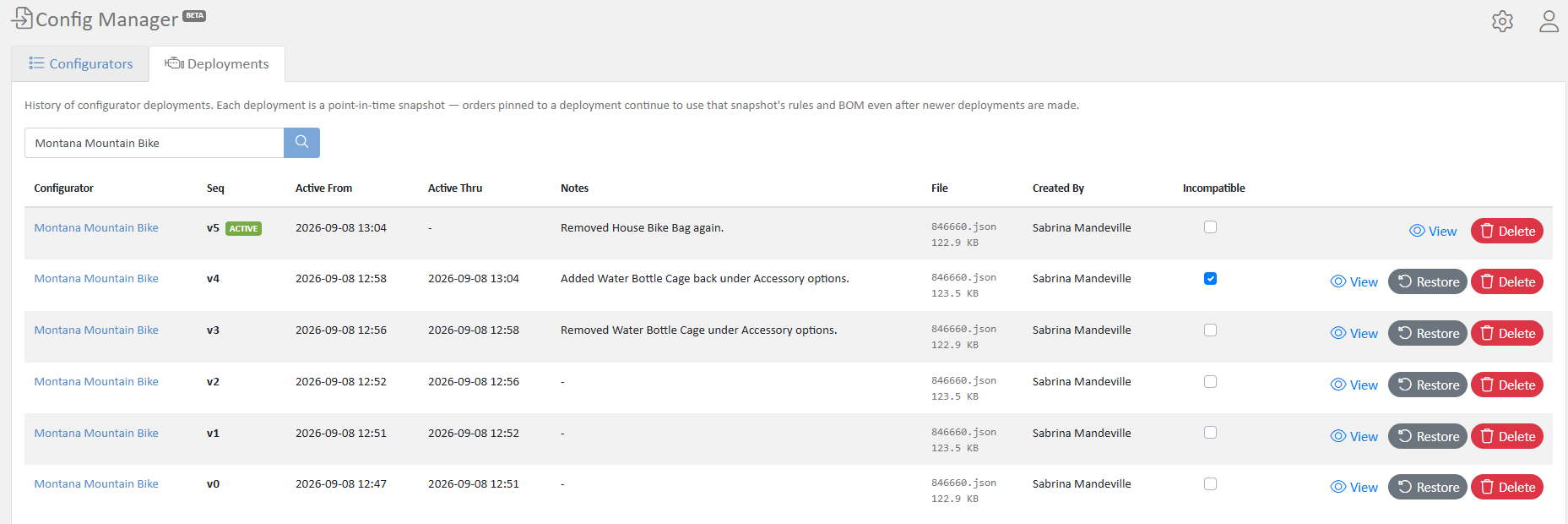
Open Config Manager. The Configurators tab lists the configurators; the Deployments tab shows version history.
Start with a real configurator that is in active use but not the most complex one, so a full cycle can be watched end to end.
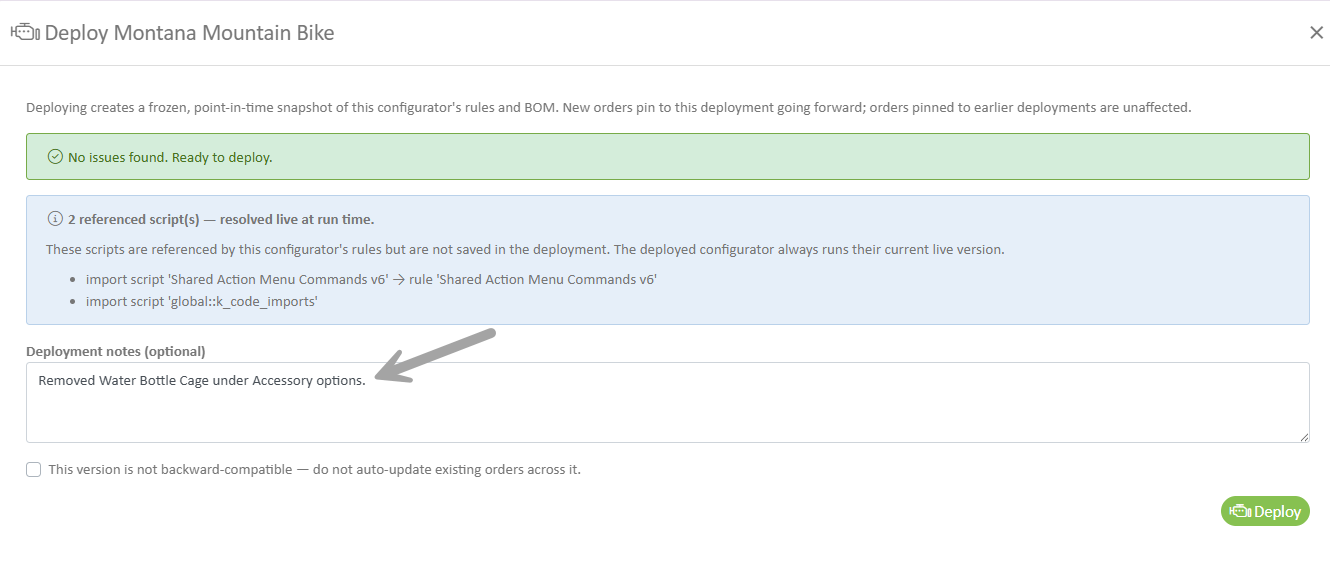
Validation runs first, and reports what it found before anything is published:
- Errors block the deploy — a configurator with no name, a rule that cannot compile, a broken reference.
- Warnings do not block it. Review them and continue deliberately.
- Referenced live scripts are listed separately. Scripts a configurator calls stay live rather than traveling with the version, so the dialog names the ones this version depends on.
Add a note describing what changed. Version history earns its value when each entry says why it exists.
6. Try it end to end
Two checks are worth doing before rolling this out more widely.
In Config Studio: make a small visible change — add an image, or adjust a layout. Confirm it is not yet in order entry. Publish a new version from Config Manager, then confirm it is.
In Order Management: open an order created before the latest publish. Confirm it shows the options it was built with, and that Review update is offered. Open that, look at what would change, and apply it. Then use Restore previous configuration to put it back.
Doing this once on a real order is the quickest way for a team to trust the system, because both directions are visible and reversible.


The change process from here on
- Design freely. Rules, bill of materials, categories, styles, layouts, images.
- Test against the draft, using Test Configurator, while order entry stays on the published version.
- Validate and publish from Config Manager, with a note describing the change.
- Tell whoever works orders if the change matters to them — new options usually do.
- Existing orders stay on their version until someone reviews and applies the update there.
Step 1 is the part that changes most in practice. Configurator changes used to apply as soon as they were saved, which kept changes small and out of hours. They can now be as large as the work requires, at whatever time suits.
When a change cannot be carried across
Some changes are too structural for an existing order to move onto safely — removing an option an order already selected, or restructuring a branch it depends on.
Mark such a version update-incompatible when publishing it. Orders on earlier versions are not offered an automatic update across it. Instead, an order reports that newer options exist but need the item to be entered again.
This is the honest answer when an order genuinely cannot be migrated, and it keeps orders from a silent, wrong-looking result.
Rolling back
Config Manager can return to an earlier version. Rolling back publishes that version again as a new entry in the history, so the record of what happened stays intact.
Things worth knowing
Orders from before versioning. An order with no version recorded resolves to the version that was active when the order was placed, or the earliest version if the order predates all of them. It is offered an update into the current version the first time someone opens it.
One version is active at a time. Publishing closes out the previous version automatically, and history is kept.
Deleting a version. Config Manager can delete a version. Do this only for a version nothing is pinned to — deleting one an order depends on removes the record of what that order was built against.
Rule loops. If rules trigger each other in a circle, the engine stops and notifies the monitoring team. A Configurator Rule Loop Limit setting raises the ceiling if a legitimately deep configurator needs it.
Diagnostics for support. A Log Configurator Deploy setting records detail about publishing and version resolution. Leave it off normally; turn it on if we ask while investigating something.
Getting started
Deployments is enabled per company. Talk to us when you would like it turned on and we will walk through the setup above with you, publish a first configurator together, and agree who should hold the Configurator Admin role.
Frequently Asked Questions
Does enabling this change any existing order? No. Existing orders carry on as they are until one is opened and an update is applied.
Does a price change require publishing a new version? No. Prices are live, so every new order picks up the change immediately. Existing order lines keep the price they were written with; use Refresh Pricing on the order to bring them current.
An image added in Config Studio does not appear in order entry. Images travel with the version. Publish a new version from Config Manager and it will appear. Replacing the file behind an image that already exists is the exception and shows through without publishing.
Who can publish? Anyone with the Configurator Admin role. Keep that group to the people who should be able to move order entry forward.
What happens if the wrong thing is published? Roll back from Config Manager. Orders created against that version can be moved onto the restored one, and an order already updated can be put back with Restore previous configuration.
Are quotes and sales treated differently? Yes, by default. Quotes are offered updates to everyone; sales to internal staff. Invoices are never offered updates. All configurable in Settings.
How did we do?
Table of Contents
Introduction to Kanban Inventory Management