Introduction to Tickets
Introduction to Tickets. Internal Tickets replaces email for internal work requests. When someone needs something from another person or team, they raise a ticket instead of sending a message that ca…
Introduction to Tickets
Internal Tickets replaces email for internal work requests. When someone needs something from another person or team, they raise a ticket instead of sending a message that can be missed. Every request has one named owner, a visible place on the board, and a full history of what happened and when.
Why you would use it
Email requests go missing. Nobody is sure who picked one up, whether it was finished, or what was decided along the way. A ticket keeps all of that in one place, and anyone who needs to know can see where the request stands without asking.
You build the board
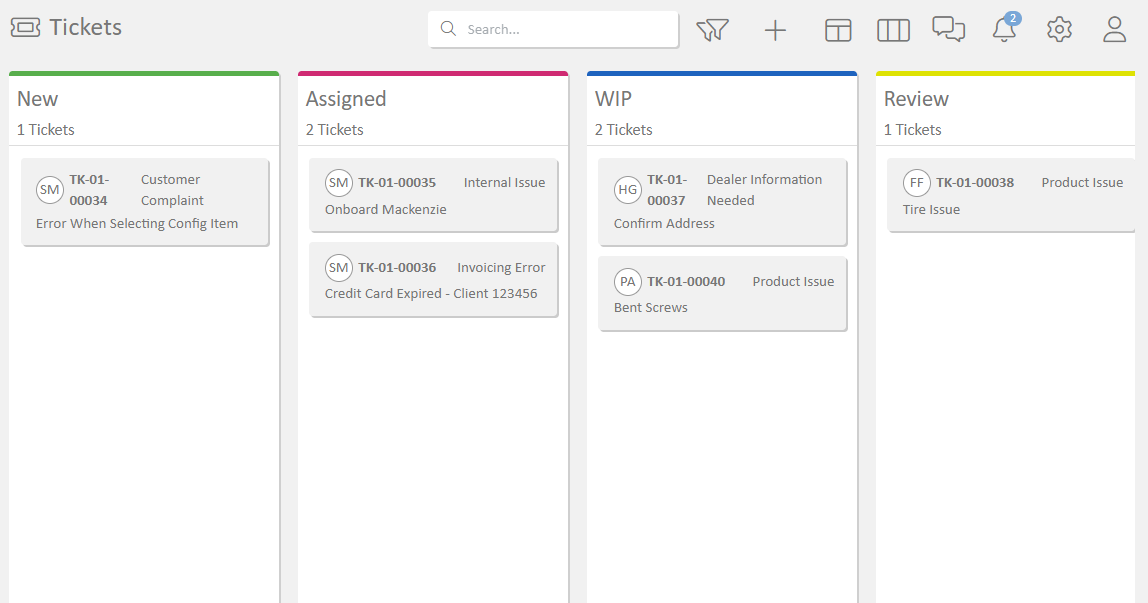
There is no standard set of columns. You create the board, and it should read like the way your team already works rather than a process borrowed from somewhere else.
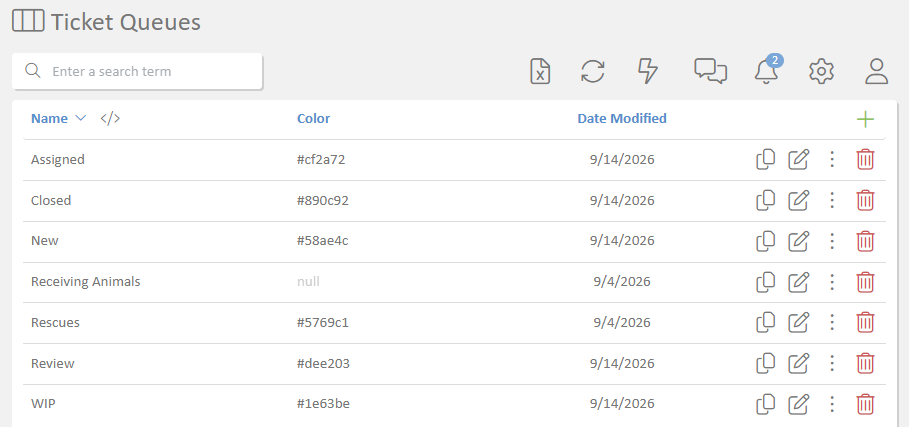
Each column is a queue that you create and name yourself. A queue has a name, a color, and an optional description. You choose how many columns there are and what order they sit in, and you can change all of it later.
Some teams run three columns. Others run one per department, or one per stage of an approval. Both are normal. A few examples of boards people build:
- A small team: To Do, Doing, Done.
- A facilities team: Reported, Scheduled, On Site, Complete.
- An approvals process: Requested, With Finance, Approved, Rejected.
- A shared service desk: Unclaimed, Assigned, Waiting on Requester, Ready to Verify, Closed.
You can also build more than one board, and a board belongs to a division, so different parts of the business can work the way they need to without agreeing on a single layout. See the Divisions guide.
Click a card and the ticket opens in a panel on the right, without losing your place on the board. The same panel is used when you create a new ticket. Drag a card from one column to the next as the work moves along.
The board keeps itself up to date on a timer, refreshing about every 30 seconds, so you see other people's changes shortly after they make them. Your own changes appear immediately. The refresh interval can be adjusted for your site.
Giving a column a behavior
Naming and ordering the columns is yours. What each column does when a ticket lands in it is chosen from a short list, so the board can take care of routine steps for you.
When you place a queue on a board you give it one of these behaviors:
- New is where incoming tickets arrive.
- Auto Assign gives the ticket to the person who moves it in, so claiming work is one drag
rather than a drag and an edit. - Auto Unassign clears the owner, which is useful for a column that hands work back to a shared
pool. - Review is for work that is finished but waiting to be checked.
- Closed is where completed tickets come to rest.
These are behaviors, not column names. A column called Ready to Verify and a column called With QA can both behave as Review. If a ticket has taken someone's name by itself on one column but not another, that is the Auto Assign behavior doing its job.
Because behavior is set where the queue meets the board, the same queue can be reused on another board without carrying its old behavior with it.
Open or closed
Separately from where a ticket sits on the board, a ticket is either open or closed. The board shows you the detail of where the work is; open or closed is the simple answer to whether it is still live. Moving a ticket into a column that behaves as Closed is what finishes it.
Ticket types
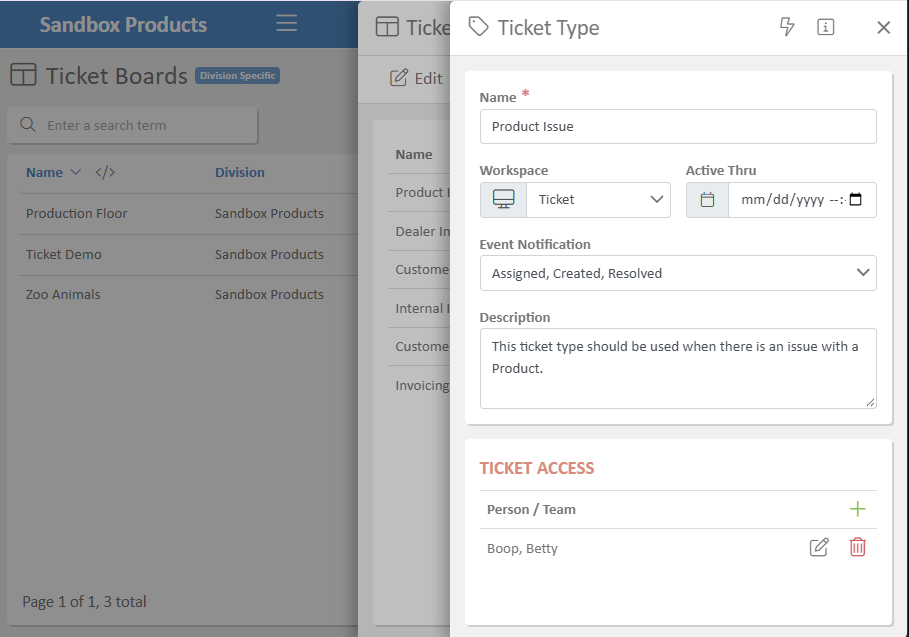
A ticket type describes a kind of request, for example a maintenance request, a document change, or a new user setup. Each type can carry its own fields, so the person raising the request is asked for the right details up front rather than in a series of follow up questions.
Ticket types also control which events notify the people involved.
Working a ticket
A ticket carries a title, a description, a priority, and an owner. You can attach files to it, and the discussion happens in a conversation attached to the ticket itself, so the reasoning stays with the request rather than in somebody's inbox. See the Conversations guide for how that works.
The ticket records its own history as it goes, including when it was created, assigned, moved between queues, changed priority, resolved, closed, and reopened. Reopening does not erase anything. It is added to the history like any other event, so a request that came back is visible as exactly that.
Notifications
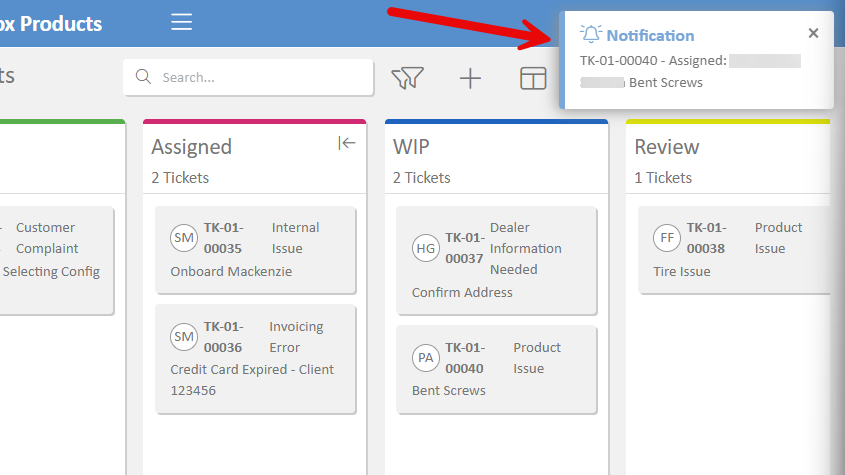
The people on a ticket are told when the events you care about happen. Which events send a notification is set on the ticket type, so a busy type can stay quiet while an urgent one tells people about every change.
Getting set up
Three things to decide before your team starts:
- Your columns. Create a queue for each one, name them the way your team talks about the work,
and put them in the order the work actually flows. - What each column does. Give each one a behavior from the list above. Most boards need a New
at the start and a Closed at the end, and the rest is up to you. - Your ticket types, the fields each one should ask for, and which events notify people.
None of this is permanent. Start with the board you think you want, use it for a week, and change the columns once you can see where work actually piles up.
How did we do?
Internal Tickets Setup Guide